Need an Elementor Loop Carousel play pause button? Here is the exact code we use in client remediation projects — it takes about five minutes to add.
Elementor’s Loop Carousel widget is a powerful tool for showcasing dynamic content, but one feature it lacks out of the box is a visible play/pause button for autoplaying sliders. That button is essential for accessibility: it gives every user, including keyboard, screen reader and touch users, control over moving content. In this guide, you’ll learn why the button matters, how to add an accessible play/pause button with a small script, how to respect users’ reduced-motion settings, and how to troubleshoot pages with more than one carousel.
Why Add a Play/Pause Button?
- Lets visitors pause slides to read content at their own pace.
- Helps people with attention-related, cognitive and vestibular disabilities, for whom constant motion is distracting or physically uncomfortable, and screen reader and magnifier users, who can lose their place when content changes under them.
- Prevents distractions on time-sensitive pages.
It is also a WCAG requirement. WCAG 2.2 Success Criterion 2.2.2 Pause, Stop, Hide (Level A) says that moving content which starts automatically, lasts more than five seconds and is shown alongside other content must have a way for users to pause, stop or hide it. W3C’s Understanding 2.2.2 explains the reasoning, and the W3C carousel tutorial’s page on carousel animations recommends a visible pause button.
Why “Pause on Hover” Is Not Enough
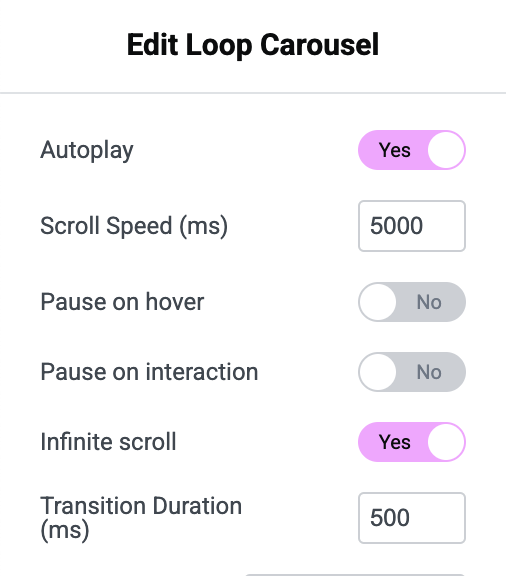
Elementor’s carousel settings include Pause on hover and Pause on interaction. They are useful extras, but they do not meet 2.2.2 on their own. Keyboard users and screen reader users never hover, touch screen users cannot hover at all, and “pause on interaction” only works after the user has already tried to interact with moving content. A visible, focusable button that works with the keyboard is the dependable way to give everyone control.
The Simplest Option: Turn Autoplay Off
Before adding code, ask whether the carousel needs to autoplay at all. If you switch Autoplay off in the Elementor Loop Carousel settings, the slides only move when users press the navigation arrows or dots, and 2.2.2 no longer applies. Autoplaying carousels often get less engagement than designers expect, and a static first slide with clear navigation is usually easier for everyone. If the design does call for autoplay, add the button below.
Add a Play/Pause Button to the Elementor Loop Carousel With JavaScript
Below is the code that adds this functionality. You can add it without editing Elementor’s core files by injecting the script into your WordPress site with a plugin like WPCode or your theme’s custom JS section. It uses plain JavaScript and the Swiper instance Elementor already creates, so no jQuery is needed.
Code Overview
(function () {
  const reduceMotion = window.matchMedia('(prefers-reduced-motion: reduce)');

  // Wait until Elementor has initialised Swiper on at least one Loop Carousel
  const observer = new MutationObserver(function (mutations, obs) {
    if (document.querySelector('.elementor-widget-loop-carousel .swiper-initialized')) {
      obs.disconnect();
      setupSliderControls();
    }
  });
  observer.observe(document, { childList: true, subtree: true });

  function setupSliderControls() {
    document.querySelectorAll('.elementor-widget-loop-carousel').forEach(function (widget, index) {
      const slider = widget.querySelector('.swiper.swiper-initialized');
      if (!slider || !slider.swiper || !slider.swiper.autoplay) return;
      if (widget.querySelector('.ha-carousel-toggle')) return; // already added

      const wrapper = slider.querySelector('.swiper-wrapper');
      wrapper.id = wrapper.id || 'ha-carousel-' + index;

      const button = document.createElement('button');
      button.type = 'button';
      button.className = 'ha-carousel-toggle';
      button.setAttribute('aria-controls', wrapper.id);
      slider.appendChild(button);

      function setLabel(playing) {
        // The visible text is the accessible name, so it always matches what users see
        button.textContent = playing ? 'Pause slideshow' : 'Play slideshow';
      }

      // Respect the user's reduced-motion setting: start paused
      if (reduceMotion.matches) {
        slider.swiper.autoplay.stop();
      }
      setLabel(slider.swiper.autoplay.running);

      button.addEventListener('click', function () {
        if (slider.swiper.autoplay.running) {
          slider.swiper.autoplay.stop();
          setLabel(false);
        } else {
          slider.swiper.autoplay.start();
          setLabel(true);
        }
      });
    });
  }
})();
Why the Button Changes Its Label Instead of Using aria-pressed
There are two accessible ways to build a toggle button. One keeps the same label and reports state with aria-pressed (“Pause, toggle button, pressed”). The other changes the label to describe the action the button will take next (“Pause slideshow” becomes “Play slideshow”). The WAI-ARIA Authoring Practices carousel pattern uses the second approach for its rotation control, so this code follows it. The important thing is not to mix the two: a button whose text changes to “Play” while aria-pressed also flips is announced in a confusing way, and a fixed aria-label that differs from the visible text breaks WCAG 2.5.3 Label in Name for voice control users. That is why an earlier version of this script, which combined a fixed aria-label, changing text and aria-pressed, has been updated.
Respecting prefers-reduced-motion
People who turn on “Reduce motion” in their operating system are telling websites they want less movement. The script checks the prefers-reduced-motion media query and starts the carousel paused for those users, while still letting them press Play. You can also shorten or remove slide transitions for them in CSS, as shown below.
Implementation Steps
- Make sure Autoplay is enabled in your Elementor Loop Carousel settings (Content tab, Settings).
- Disable Pause on hover and Pause on interaction in the same settings, so the button is the single, predictable control and its label always matches the carousel’s real state.
- Check that Swiper has initialised: in your browser’s developer tools, the carousel should have the
.swiper-initializedclass. Elementor adds this automatically. - Add the code:
- Option 1: Use a plugin like WPCode to add the script to the site footer.
- Option 2: Add it to your theme’s custom JS section, or enqueue it from a child theme.
- Style the button (optional) with the CSS below. Keep a visible focus outline and enough contrast.
.ha-carousel-toggle {
  position: absolute;
  bottom: 10px;
  right: 10px;
  z-index: 10;
  min-width: 44px;
  min-height: 44px;
  padding: 8px 15px;
  background: #333;
  color: #fff;
  border: none;
  border-radius: 3px;
  cursor: pointer;
}
.ha-carousel-toggle:focus-visible {
  outline: 3px solid #ffbf47;
  outline-offset: 2px;
}
@media (prefers-reduced-motion: reduce) {
  .elementor-widget-loop-carousel .swiper-wrapper {
    transition-duration: 0ms !important;
  }
}
Keyboard and Screen Reader Checks
- Keyboard: Tab to the button and press Enter and Space. The carousel should stop and start, and the focus outline should stay visible. Our manual keyboard testing guide covers what else to check.
- Screen reader: with NVDA or VoiceOver, the button should be announced as “Pause slideshow, button”, then “Play slideshow, button” after you press it. See our screen reader testing guide.
- Placement: the button should be easy to find, ideally before or near the slides in the reading order, and not hidden behind other elements.
- Automated scan: run a quick check for contrast and names; our automated accessibility testing guide explains what tools can and cannot find.
Troubleshooting
- Button not appearing: confirm your carousel uses the class
.elementor-widget-loop-carouseland adjust the selector if needed. For Elementor’s other carousel widgets, use their widget class instead. - Autoplay not working: make sure autoplay is enabled in Elementor’s widget settings, and check in developer tools that the element has a
swiperproperty with anautoplayobject. - Several carousels on one page: the script loops through every Loop Carousel and adds a separate button to each, with its own
aria-controlstarget. If one carousel is missing a button, it probably initialised after the script ran (for example in a tab or popup); callsetupSliderControls()again after it opens. The check for an existing button prevents duplicates. - Label out of sync: if the carousel still pauses on hover or interaction, the label can say “Pause” while the carousel is already paused. Turn those settings off (step 2).
Conclusion
By adding a play/pause button, you let users interact with your sliders on their own terms and meet WCAG 2.2.2. This solution is lightweight, follows the APG carousel pattern, respects reduced-motion preferences and works with Elementor’s dynamic content. Customise the button’s look to match your site’s design, test it with a keyboard and a screen reader, and enjoy smoother interactions for everyone. For a wider review of an Elementor build, our accessible WordPress development team can help.
Related Resources
- Accessibility remediation services
- Accessible WordPress development
- WordPress accessibility audit
- ARIA essentials
- WCAG 2.2.2: Pause, Stop, Hide (W3C)
Work With Us
This is one small fix among many. If you’d rather have your whole site’s accessibility issues found and prioritized for you, our WordPress accessibility audit tests your theme, Elementor layouts and plugins for $500 or $2,000, and our wider accessibility audit service covers any platform.
Get a free accessibility needs assessment — no commitment required.