Short answer: No platform can make your store Shopify ADA compliant on its own. Shopify gives you a solid foundation, and it publishes an accessibility conformance report for its checkout. But the theme you customise, the apps you install and the content you upload are your responsibility. Those three layers are where almost every Shopify ADA lawsuit finds its evidence.
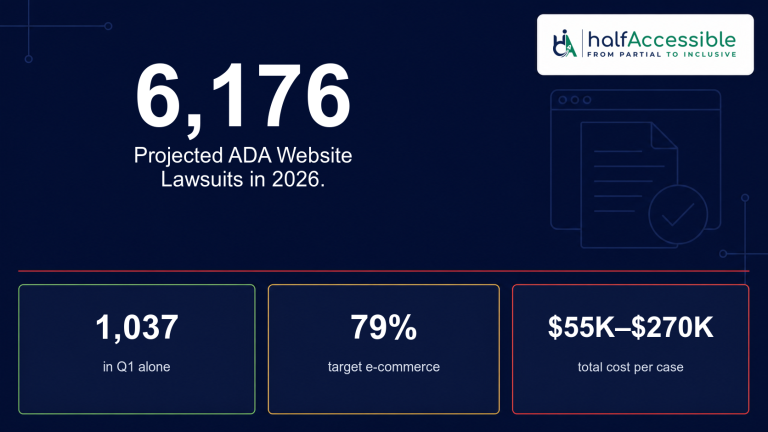
That matters more in 2026 than ever. According to EcomBack’s 2026 mid-year report, Shopify stores drew 952 ADA website lawsuits in the first half of 2026, or 46.55% of all filings. That’s up from 32.42% a year earlier, and it made Shopify the most-targeted platform for the first time.
This guide is written by accessibility testers who audit Shopify stores for a living. It explains what “Shopify ADA compliant” actually means, the nine barriers we find again and again, and a practical fix for each one.
What “Shopify ADA Compliant” Really Means
The Americans with Disabilities Act (ADA) doesn’t contain a technical checklist for private websites. Title III, which covers businesses open to the public, has no published web standard from the Department of Justice. In practice, plaintiffs, courts and settlement agreements use the Web Content Accessibility Guidelines (WCAG) 2.1 or 2.2 at Level AA as the benchmark.
So when a merchant asks whether their store is Shopify ADA compliant, the useful question is narrower: can a customer with a disability find a product, choose options, add it to the cart and pay, using a keyboard, a screen reader, zoom or voice control? If any step blocks them, that step is a barrier, and barriers are what demand letters list.
It’s also worth knowing what the April 2026 deadline news does and doesn’t cover. The Justice Department’s interim final rule pushed back the Title II deadlines, which apply to state and local governments. It changed nothing for private online stores, whose obligations under Title III already apply.
Is Shopify Itself ADA Compliant?
Shopify does a lot of the groundwork well, and it’s fair to credit that.
- Checkout: Shopify publishes a WCAG accessibility conformance report for Shopify Checkout, dated March 2026, covering WCAG 2.0, 2.1 and 2.2 at Levels A and AA. The report itself notes that remediation is ongoing, so it isn’t a blanket guarantee.
- Theme Store rules: Themes listed in the Shopify Theme Store must meet accessibility requirements. These include full keyboard access, visible focus, labelled form inputs, 4.5:1 text contrast and 24 by 24 pixel touch targets. They also need an average Lighthouse accessibility score of at least 90.
That still doesn’t make a live store Shopify ADA compliant. Lighthouse checks only a subset of issues automatically, and the Theme Store tests a theme with demo content, not your customised version. The moment you change colours, add sections, paste in marketing banners or install apps, you own the result.
Where responsibility sits on a typical Shopify ADA Compliance store:
| Layer | Who controls it | Typical risk |
|---|---|---|
| Shopify Checkout core | Shopify | Lower, with a published conformance report |
| Theme and its customisations | You or your developer | High |
| Third-party apps and widgets | App vendors, but you chose them | High |
| Product images, videos and copy | You | High |
| Checkout extensions and custom scripts | You or app vendors | Medium to high |
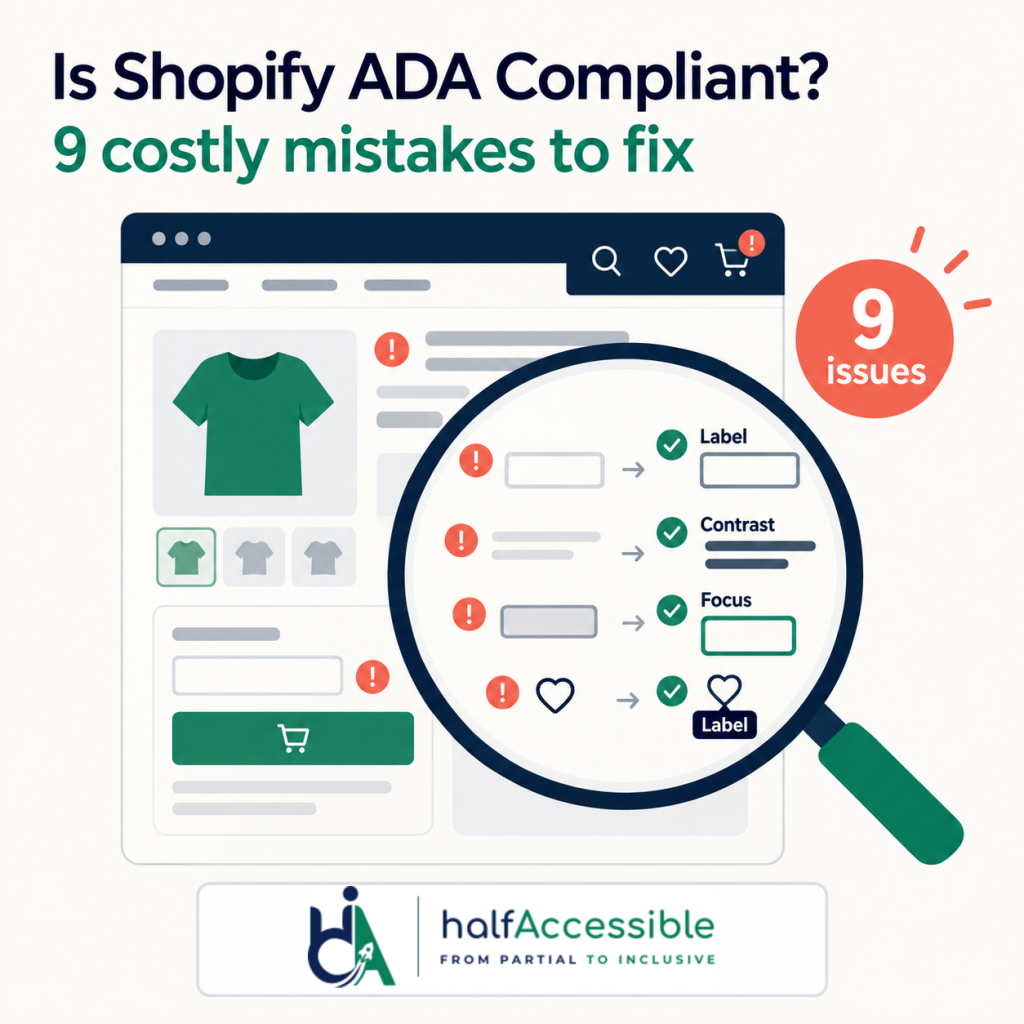
The 9 Mistakes We See in Every Shopify ADA Compliance Lawsuit Audit
Complaints in Shopify ADA lawsuit filings tend to repeat the same barriers, because testers look for the same things. EcomBack’s Q1 2026 report lists the most common: missing alt text, poor keyboard navigation, unlabelled forms, low contrast and uncaptioned video. Here are those barriers plus four more we find routinely in manual audits, each mapped to the WCAG success criterion it fails.
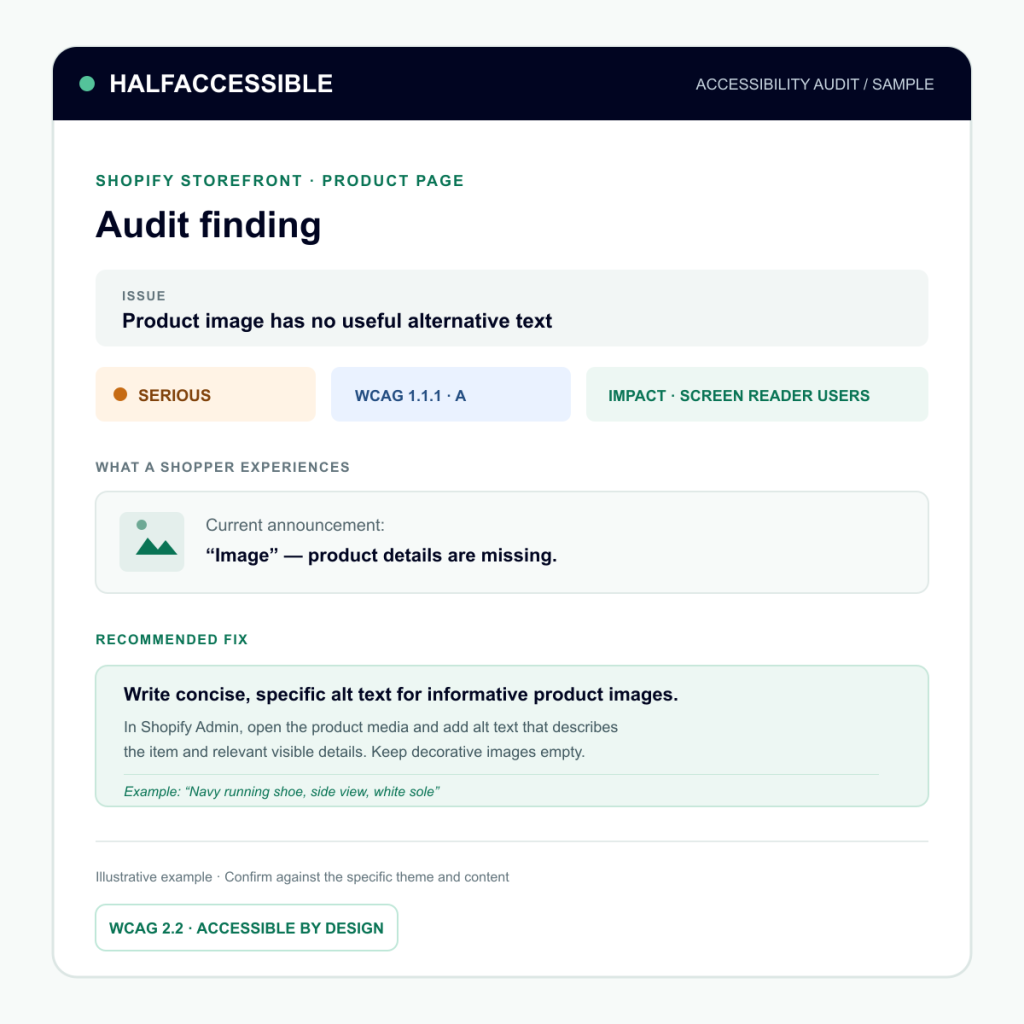
1. Product Images Without Useful Alt Text
The problem: Product photos have empty, missing or useless alt text, such as the file name “IMG_4432.jpg” or the product title repeated for every image in a gallery. A screen reader user can’t tell what the black dress looks like from the back or which colour swatch they’re viewing.
WCAG: 1.1.1 Non-text Content (Level A).
How to fix it: Write alt text for each product image in Shopify admin (Products, then the image, then “Add alt text”). Describe what a sighted shopper learns from that image: colour, angle, detail or scale. Mark purely decorative images as decorative, not with filler text. For large catalogues, fix your best sellers first, then work through the rest in batches.
2. Colour Contrast That Fails on Real Content
The problem: Light grey body text, white text over photo banners, pale “sale” badges and faint input borders. This is the single most common automated finding on Shopify stores.
WCAG: 1.4.3 Contrast (Minimum) requires 4.5:1 for normal text and 3:1 for large text. 1.4.11 Non-text Contrast requires 3:1 for input borders, icons and focus indicators.
How to fix it: Adjust colours in the theme editor’s colour schemes, not one element at a time. Add a solid or semi-transparent overlay behind text on image banners. Check the combinations you actually use with a contrast checker, including hover and sale states.
3. Menus, Filters and Carousels You Can’t Use With a Keyboard
The problem: Mega-menus that only open on mouse hover, collection filters that can’t be reached with Tab, and slideshows that trap focus or auto-advance with no pause button.
WCAG: 2.1.1 Keyboard (A), 2.1.2 No Keyboard Trap (A) and 2.2.2 Pause, Stop, Hide (A).
How to fix it: Unplug your mouse and try to reach every menu item, filter and slide using only Tab, Shift+Tab, Enter, Space and the arrow keys. Replace hover-only menus with disclosure buttons that use aria-expanded. Give any auto-rotating carousel a visible pause control, or turn auto-rotation off entirely, which is usually the better choice.
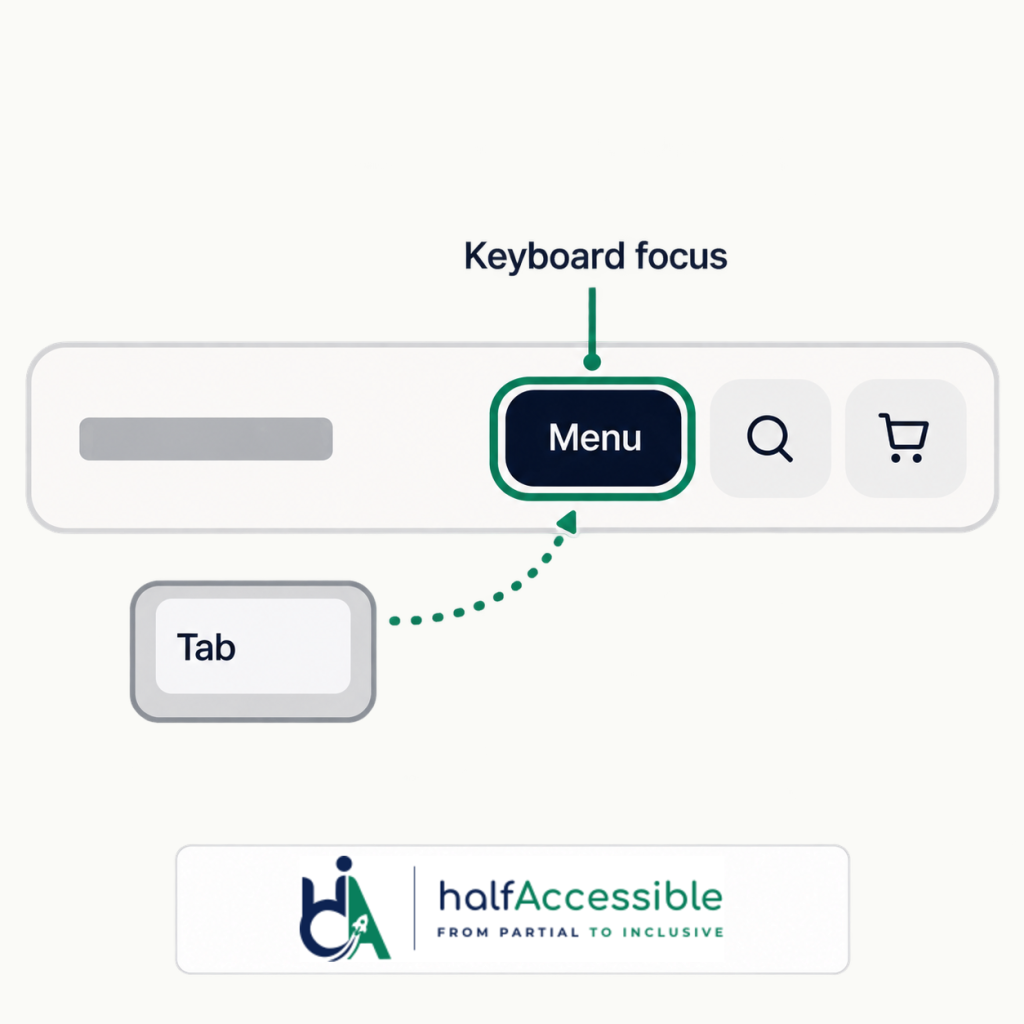
4. Invisible or Hidden Keyboard Focus
The problem: A theme customisation or app stylesheet removes the focus outline with outline: none, so keyboard users can’t see where they are. Sticky headers and chat widgets can also cover the focused element.
WCAG: 2.4.7 Focus Visible (AA). WCAG 2.2 adds 2.4.11 Focus Not Obscured (Minimum) (AA).
How to fix it: Search your theme CSS for outline: none and outline: 0, and replace them with a clearly visible :focus-visible style. Then tab through the page with the sticky header and any chat bubble active, and confirm the focused element stays visible.
5. Buttons and Links With No Accessible Name
The problem: Icon-only controls such as the cart, search, account, wishlist heart, quantity plus and minus, and social icons have no text a screen reader can announce. NVDA just says “button” or reads out a URL.
WCAG: 4.1.2 Name, Role, Value (A), and 2.4.4 Link Purpose (In Context) (A).
How to fix it: Give every icon control a visually hidden text label or an aria-label that says what it does, such as “Cart, 2 items” or “Increase quantity”. Check it by listening, not just by inspecting the code: open the NVDA elements list or the VoiceOver rotor and read the names back.
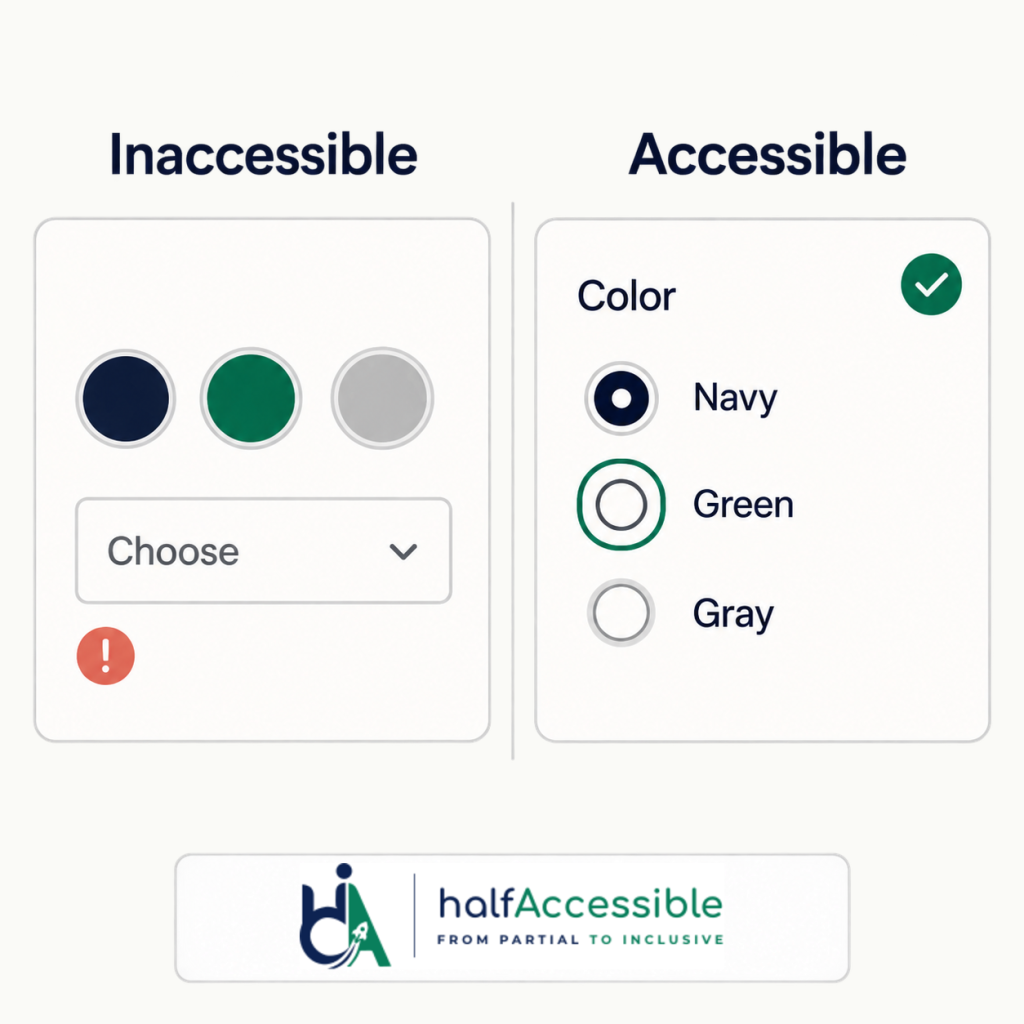
6. Variant Pickers and Quantity Fields That Don’t Announce Changes
The problem: Size and colour swatches built from styled div elements, prices that update silently when a variant changes, and “Sold out” states conveyed only by a strike-through or greyed-out swatch.
WCAG: 1.3.1 Info and Relationships (A), 4.1.2 Name, Role, Value (A), 1.4.1 Use of Color (A) and 4.1.3 Status Messages (AA).
How to fix it: Build variant pickers from native radio buttons inside a fieldset with a legend such as “Size”, styled however you like. Announce price and availability changes through a polite live region. Add text such as “Sold out” to unavailable options rather than relying on colour or a line through the swatch.
7. Cart Drawers and Pop-ups That Break Focus
The problem: When a shopper adds to cart, a slide-out drawer opens, but keyboard focus stays behind it on the product page. Newsletter and discount pop-ups appear without warning, can’t be closed with Escape and don’t return focus when dismissed.
WCAG: 2.4.3 Focus Order (A), 2.1.2 No Keyboard Trap (A) and 4.1.2 Name, Role, Value (A).
How to fix it: Treat drawers and pop-ups as dialogs. Move focus into them when they open, keep focus inside while they’re open, close them with Escape, and send focus back to the button that opened them. A native dialog element handles much of this for you.
8. Third-Party Apps That Inject Inaccessible Code
The problem: Reviews widgets, upsell carousels, size-chart pop-ups, loyalty launchers and chat bubbles each bring their own markup. A clean theme can fail an audit because of one app.
WCAG: Varies. Common failures are 2.1.1 Keyboard, 4.1.2 Name, Role, Value and 1.4.3 Contrast.
How to fix it: Keep an inventory of every app that renders on your storefront. Test each one with a keyboard and a screen reader, ask vendors for their own accessibility conformance report (sometimes called a VPAT), and replace or remove apps that can’t be fixed. Include apps in every audit scope, because plaintiffs’ testers won’t skip them.
9. Relying on an Accessibility Overlay Instead of Fixing the Code
The problem: Installing a one-line widget that promises instant compliance. According to EcomBack’s Q1 2026 report, 265 of the 1,037 websites sued that quarter, or 25.5%, already had an accessibility widget installed.
In April 2025, the Federal Trade Commission finalised an order requiring overlay vendor accessiBe to pay $1 million. The order bars it from claiming its automated tool can make any website WCAG compliant without evidence to back that up.
How to fix it: Put that budget into fixing the theme, apps and content at the source. We explain why in our article on accessibility overlays and ADA lawsuits.
How to Test Whether Your Shopify Store Is ADA Compliant
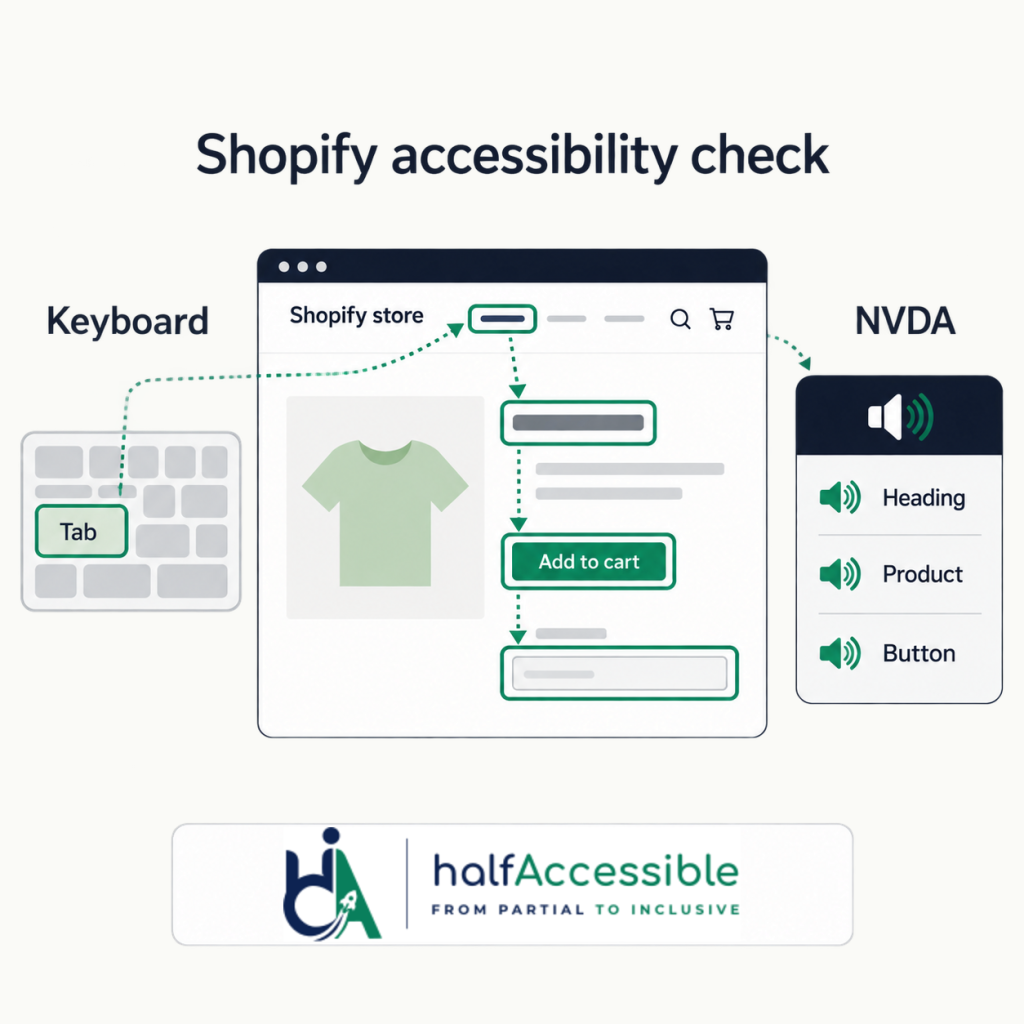
A quick automated scan is a starting point, not a verdict. Automated tools such as axe DevTools, WAVE and Lighthouse reliably catch only a portion of WCAG issues. They can’t tell you whether alt text is accurate, whether focus order makes sense or whether a cart drawer is usable with a screen reader. Here’s the process we recommend.
- Define the critical path. Homepage, a collection page with filters, a product page with variants, cart, checkout, account login, search and contact form. These are the pages demand letters cite.
- Run automated checks with axe DevTools or WAVE to catch contrast, missing labels and missing alt attributes quickly.
- Do a keyboard-only pass of the whole critical path. Our manual keyboard testing guide walks through it.
- Test with screen readers: NVDA with Chrome or Firefox on Windows, VoiceOver with Safari on iPhone and Mac, and TalkBack on Android. See our screen reader testing guide.
- Check zoom and reflow at 200% and 400% zoom, and at a 320-pixel viewport width (WCAG 1.4.4 and 1.4.10).
- Test every storefront app on the critical path, not just the theme.
- Document and prioritise. Record each issue with its WCAG criterion, severity, location and a suggested fix, so developers can act on it.
If you’d rather have experts do this, our Shopify accessibility audit covers the full critical path, including apps, with manual testing across NVDA, JAWS, VoiceOver and TalkBack. You can see the format in our sample audit report.
A Practical Shopify Accessibility Fix Plan
You don’t have to fix everything in one sprint. A sensible order is:
- Week 1: Fix barriers that stop a purchase outright: keyboard traps, unlabelled checkout-adjacent fields, a cart drawer that can’t be used, and variant pickers a screen reader can’t operate.
- Weeks 2 to 3: Fix theme-wide issues once so they’re fixed everywhere: colour schemes, focus styles, icon button names and heading structure.
- Weeks 3 to 4: Clean up content: product image alt text, captions for product videos and descriptive link text.
- Ongoing: Re-test after every theme update or new app, publish an accessibility statement with a working contact route, and schedule regular monitoring.
Our accessibility remediation and accessible Shopify development teams fix issues in your theme code and handle apps, rather than layering scripts on top.
What to Do If You’ve Received a Shopify ADA Compliance Lawsuit or Demand Letter
This isn’t legal advice, and you should speak to a qualified attorney promptly. From the accessibility side, these steps help:
- Don’t rush to install an overlay as a response. It won’t remove the barriers the complaint describes.
- Preserve records of your site as it was, and document every fix you make from now on.
- Commission a manual audit against WCAG 2.2 Level AA so your attorney knows exactly what’s broken and what’s already fixed.
- Keep testing after you remediate. Repeat plaintiffs target stores that settle without fixing anything.
Our glossary entry on the ADA demand letter explains the terms you’re likely to see, and our 2026 ADA website lawsuit statistics article covers the wider trends.
Make Your Shopify Store Accessible
“Is Shopify ADA compliant?” is the wrong question to stop at. The platform can’t carry that responsibility for you, but a well-tested theme, carefully chosen apps and accurate content can. Start with the nine mistakes above, test the critical path with real assistive technology, and fix issues at the source.
If you want a clear list of what’s broken and how to fix it, book a Shopify accessibility audit with HalfAccessible.